Getting Started
 Getting Started
How do I download the GuardianGamer app?
If you have an iPhone, download GuardianGamer from the App Store. If you have any other phone, laptop, or tablet, use the web app at guardiangamer.gg/sign-up — same features, same dashboard, no App Store required.
Once you're logged in as a parent, generate a pairing code and you're ready to set up how your child will play.
What is cloud gaming and why does GuardianGamer use it?
GuardianGamer is a cloud gaming platform. The game does not run on your child's iPad or laptop. It runs on a powerful computer in a data centre, and what reaches your child is a live video stream of that game, much the way Netflix streams a film.
Here is the loop, and it repeats many times a second:
1. The game runs on our server.
2. The server sends the picture and sound to your child's screen as a video stream.
3. Your child taps, clicks or speaks, and those inputs travel back up to the server.
4. The server applies them to the game and sends the next frame down.
The round trip happens fast enough that it feels like the game is running on the device in front of them. Nothing is installed and nothing is downloaded, so there is nothing to update and nothing taking up space.
This is also what makes the safety layer possible. Because every frame, every voice packet and every chat message already passes through our servers, supervision happens there rather than on your child's device. That means no monitoring software to install, nothing running in the background on their iPad, and nothing for a determined child to uninstall or switch off. Time limits are enforced on our side, the game's own voice chat is switched off before the session ever reaches them, and highlight clips and session summaries are cut from the stream we are already handling.
It also means the same account works on almost anything with a screen and a browser: iPad, iPhone, Android tablet, Chromebook, Windows laptop or Mac.
What do we need for cloud gaming to work well?
A reasonable home internet connection and a browser. That is genuinely it. There is no console to buy, no gaming PC, and no download.
Because the game is a live stream, the quality of the experience depends on the connection rather than on how new the device is. An older iPad on good wifi will play better than a brand new one on a weak signal. If the picture looks soft or the controls feel slow, the usual culprits are distance from the router or a busy network, so moving closer to the router or using the 5GHz band normally sorts it.
A five year old tablet that could never run these games natively will stream them perfectly well, because it is only being asked to play a video.
Does playing through the cloud change my child's game or account?
No. They sign in with their own Roblox account, and their progress, purchases, worlds, skins and friends stay exactly where they are, held by Roblox as usual.
We are the screen they play through, not a copy of the game. If you stop using GuardianGamer, the account carries on as normal and nothing needs to be undone.
What does change is what happens around the session: who can reach them by voice, how long they play, and what you get to see afterwards.
How does my child actually play? What are the options?
Once you're set up as a parent, you can let your child play in any of three ways — and switch between them at any time. All of them require your consent, in the form of a pairing code you generate in your parent app.
1. On your phone (physical pairing). Hand your phone over and your child plays right there. The simplest option for younger kids who don't have their own device. You're already signed in, so there's nothing more to set up — just enter the pairing code once.
2. On their own iPhone or iPad. Install the GuardianGamer app on your child's device, then enter the pairing code you generated. Their device is now linked to your parent dashboard.
3. In any browser at joinmy.gg. Works on Android tablets, Chromebooks, Windows laptops, Macs — anything with a browser. Your child opens joinmy.gg and enters the pairing code. No download required.
Whichever option you pick, the parent app stays your dashboard. You see what they play, who they play with, and the AI summaries — and you decide how much time they get.
The setup instructions on my phone screen are too small. Help!
iPhone/iPad: tap Share, scroll to Add to Home Screen, tap Add.
Android: tap the menu (three dots), select Add to Home Screen, tap Add.
Setup works better on a larger screen like a laptop or tablet.
How do I add GuardianGamer to another device?
Open the Parent App, go to the Gamers section, tap Create Sign-In Code next to your child's name, then scan the new QR code with the additional device.
How do I pair my child's iPad using a QR code?
Sit next to your child — the whole process takes about two minutes.
1. Open the GuardianGamer parent app on your phone and sign in.
2. Tap Gamers in the menu bar, then tap Start Gaming.
3. Tap Pair child's device, then choose Set up using a QR code. A QR code will appear on your phone screen.
4. Hand the iPad to your child. Have them open Safari and go to joinmy.gg. Tap Scan QR code — the iPad's camera will open.
5. Point the iPad's camera at the QR code on your phone. The connection happens automatically — your child is signed in and ready to play.
Your child doesn't need to download the GuardianGamer app from the App Store. The web app at joinmy.gg works the same and lives on the iPad's Home Screen.
App Setup
 App Setup
I don't have an iPhone. Can I still use GuardianGamer?
Yes — there's a full web app that works on any device with a browser: Android, Windows, Chromebook, Mac. Sign up at guardiangamer.gg/sign-up and log in with your parent account. Same features, same dashboard, no App Store required.
One important step on Android: after logging in, tap your browser's menu (the three dots) and choose Add to Home Screen → Add. This installs the web app like a native app — full screen, with notifications, and a tap-to-launch icon. Without this step it'll still work in the browser, but it won't feel as smooth.
I signed up on my laptop. How do I get the Parent App on my phone?
Download GuardianGamer from the App Store, then log in with your existing parent account. Your child's profile and history sync automatically.
When I play a highlight reel it takes over my whole screen. How do I exit?
On a computer, press ESC. On iPad/iPhone, use the back/done button. On Android, use the device back button.
I haven't received any emails from GuardianGamer. Should I worry?
Check your spam/junk folder for messages from support@guardiangamer.com. Verify you can log into your Parent App. If issues persist, contact support.
I'm completely lost. Where do I start?
1. Install the Parent App and log in.
2. Connect your child's device via QR code.
3. Let them play and check the highlights.
4. Optionally invite other parents.
Safety & Protection
 Safety & Protection
How does the AI monitoring work? Is it watching my child constantly?
The AI records Roblox sessions — capturing gameplay, voice chat snippets, and on-screen activity. It creates highlight reels typically within 20 minutes, flagging anything that needs your attention.
What protections are in place against strangers and inappropriate content?
GuardianGamer replaces in-game voice chat with a secure overlay, disables original voice features, only allows pre-approved friends, and filters inappropriate language in real time.
Is my child's data and privacy protected?
GuardianGamer is COPPA compliant with encrypted, anonymized data. Session details remain private to parents only — never shared with Roblox, publishers, or third parties.
Why do I have to verify that I'm an adult?
A GuardianGamer account can only be opened and managed by a parent or legal guardian, so before your child can play we confirm the account holder is 18 or older. That verified adult consent is what keeps GuardianGamer compliant with children's privacy laws such as COPPA and GDPR-K, and it makes sure the person who sets the limits and sees your child's sessions is genuinely the parent, not the child.
What does the adult verification involve?
We use Didit, an independent identity-verification provider, to run the check. You scan a QR code, take a photo of a government-issued ID, and complete a quick face scan that confirms the ID belongs to you. It happens on your phone and usually takes about a minute. Your child can keep playing the trial while you finish, so nobody is left waiting.
What happens to my ID and face scan? Is it stored?
The check is handled by Didit, a dedicated identity-verification service. Didit processes your ID and face scan only long enough to confirm you are an adult, then returns that result to GuardianGamer. We do not keep your ID or face scan, and we have configured Didit not to retain them either, so the documents are not stored once you are verified. We use verification solely to establish verified parental consent, never for advertising or to train our AI models. You can read how Didit handles the check in Didit's privacy policy.
Voice Chat & Friends
 Voice Chat & Friends
How does GuardianGamer's voice chat overlay work with gaming accounts?
The overlay replaces built-in game voice chat with secure communication, letting children speak only with Parent-Approved Friends — parent-approved trusted contacts.
What's the difference between game friends and Parent-Approved Friends?
Game friends include anyone friended in-game.
Parent-Approved Friends are only children whose parents you've connected with through the GuardianGamer network.
What happens if my child encounters strangers while playing?
They can see other players but cannot voice chat with other players online. Text chat is filtered and monitored automatically.
How do I approve Parent-Approved Friends?
Connect with other parents through the app. Once both parents approve the friendship, the kids can voice chat during gameplay.
Does the Parent-Approved Friends system work across different games?
Yes, the approved friend list travels across supported games: Roblox today, with Minecraft coming next.
Can I see and manage my child's Parent-Approved Friends list?
Yes — view, remove, and monitor all friendships and get notifications about new requests in your parent dashboard.
Game Account Setup
 Game Account Setup
Can my child use their existing Roblox account with GuardianGamer?
Yes — after device connection, they log into their existing Roblox account through the Gamer App with all progress intact.
What if my child doesn't have a Roblox account yet?
You can create a new Roblox account through GuardianGamer with full privacy control from day one.
Do I need to change settings on my child's existing Roblox account?
GuardianGamer works with the account as-is, but reviewing Roblox's privacy settings together beforehand is recommended.
Can multiple kids use different Roblox accounts on the same family plan?
Yes — each child has their own profile linked to their own unique Roblox account.
What happens to my child's Roblox friends when we start using GuardianGamer?
Existing friendships remain intact. You gain visibility and monitoring of interactions through your parent dashboard.
If we stop using GuardianGamer, what happens to the Roblox account?
The Roblox account stays theirs — it's not tied to GuardianGamer and continues normally on any device.
Can I see my child's Roblox chat history through GuardianGamer?
Yes — session summaries show flags for concerning conversations and positive indicators rather than overwhelming raw logs.
Will GuardianGamer add more games?
Yes, Minecraft is coming next.
Screen Time & Reports
 Screen Time & Reports
How do I set screen time limits and schedules?
Set daily time limits, schedule allowed gaming hours (zero-hour blocks prevent gaming entirely), enable automatic bedtime shutoff, and reward extra time for achievements.
What kind of reports and insights do I receive?
Daily recaps with highlights, short insights about play patterns, conversation starters, and safety alerts only when something needs your attention.
Can I watch my child play or join their games?
You can watch highlight reels, have informed conversations, and share reels together. Live session watching is in development.
Pricing & Plans
 Pricing & Plans
What's included in the free trial?
The 30-day free trial includes full access to all features: 30 hours of gaming time monthly, AI safety monitoring, the GuardianGamer Assistant, Parent-Approved Friends, the parent dashboard, and priority support.
What happens after my 30-day free trial?
You are not cut off. If you choose not to subscribe, your account stays on the free tier: cloud gaming, clipping, parent stats, time limits and basic reels all keep working. What ends with the trial is supervised Roblox, which comes with a paid plan.
You can extend Roblox for longer. Sign up with the promo code extra2monthfree and supervised Roblox stays free for two months beyond the 30 day trial, so three months in total.
To keep Roblox after that, choose the plan that fits your family: Core ($9.99/month), 30 hours of supervised gaming for 1 child, or Family ($14.99/month), 60 hours for up to 3 children. Both include AI highlights, the GuardianGamer Assistant, friend groups, and time management.
What if I decide not to continue after the trial?
No charges occur automatically — the trial simply ends after 30 days. Your child's Roblox account remains untouched and playable normally.
GuardianGamer Assistant
 GuardianGamer Assistant
What is the GuardianGamer Assistant?
A personal AI companion that lives in the Parent App — your side, not your child's. It quietly watches your child's gaming sessions in the background, then answers plain-language questions about what they played, who they spoke with, what they spent, and what's worth your attention. Calm, contextual, instant. Learn more →
Does my child see or talk to the Assistant?
No. The Assistant is parent-side only — your child plays Roblox normally and never interacts with it. It works behind the scenes, summarizes what matters, and surfaces it to you in the Parent App.
Is this just spying with a friendly face?
No. The Assistant doesn't surveil — it summarizes. You don't get a raw chat log or a live surveillance feed; you get clear, contextual answers about what actually mattered. Real signal, no noise.
What does the Assistant do during a session?
It watches and listens to the session in the background — tone-aware, flagging concerning chat, capturing highlight moments, and tracking time and spending. Your child plays normally. About 20 minutes after the session ends, the Assistant has a clear picture of what happened and is ready to answer your questions in the Parent App.
Will I see every chat my child has?
No. The Assistant processes chat to detect tone and flag concerns, but you see summaries — "two heated exchanges flagged today" — not the raw messages. Real signal, no noise.
What kinds of questions can I ask the Assistant?
Ask about games played, session lengths, visited worlds, concerning chat, new interactions, Robux spending, remaining time, session frequency, and highlight moments.
How does the Assistant know what my child has been doing?
It pulls exact data from recorded Roblox sessions — gameplay, duration, voice snippets, chat, and on-screen activity. The Assistant analyzes this in the background and is usually ready with a summary within 20 minutes of a session ending.
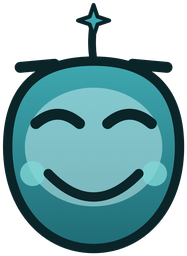
Why does the Assistant change expression?
Subtle mood cues let you read what the Assistant is doing at a glance:
- Idle — calm and present, waiting for you.
- Listening — you're typing a question.
- Thinking — pulling session data and putting an answer together.
- Speaking — giving you the answer.
- Happy — sharing good news from your child's session.
- Concerned — flagging something worth your attention.
Quiet by default. Never a pop-up, never an alarm — just expression so you can sense what's going on without reading the words.
Is what I ask the Assistant private? Who else can see this data?
Everything is private to you only — never shared with Roblox, publishers, advertisers, or any third parties.
Does the Assistant replace the parent dashboard?
No. The Assistant answers quick questions; the dashboard handles actions like setting limits, approving friends, and reviewing full history.
How do I access the GuardianGamer Assistant?
Open the GuardianGamer Parent App, tap your child's profile, and the Assistant chat appears ready for questions.
What if the Assistant's answer raises more questions?
Continue asking naturally — the Assistant maintains conversation context. For human help anytime, contact support@guardiangamer.com.
Troubleshooting
 Troubleshooting
What if the connection is slow or games are lagging?
Close other apps and tabs, move closer to your WiFi router, use a wired connection if possible, and restart your router. We recommend at least 10 Mbps internet speed.
How do I get help if something isn't working?
Email support@guardiangamer.com or contact the parent community. Most requests are resolved within 2 hours during business hours.
How do I create safe play groups with my child's friends?
Invite other parents via email or phone. Once both sides approve the connection, the kids can play together safely in private sessions.
How do I invite other parents to join GuardianGamer?
Send invitations directly from your dashboard. Invited parents receive 30-day free trials automatically.
Can kids play together if parents have different subscription plans?
Yes — all safety features work the same regardless of subscription level.
What if I don't know the other parents personally?
Connect with parents you know first. Then consider school or class groups, or activity-based groups with teacher supervision.